
Bajorat Media
VAT reduction 2020: Adjust sales tax/VAT settings in WooCommerce
✔ We explain to you all the important points about VAT reduction & the principle of the date of performance ✔ Adjust the VAT setting in WooCommerce.

In order to cope with the economic damage caused by the Corona crisis (Covid-19), the grand coalition has passed an economic stimulus package worth billions to strengthen the economy.
As part of this economic stimulus package, a reduction in VAT was decided for a limited period of time.
This change therefore applies to all companies and also affects online entrepreneurs and online trading.
In this article we would like to inform you about the upcoming changes and explain the necessary settings for sales tax/VAT in WordPress & WooCommerce.
Note about the article: When we talk about VAT in the blog article, we of course mean sales tax. We have chosen the colloquial term because it is often more common.
Please note that we do not offer tax advice. This article does not constitute tax advice and does not claim to be complete. If you have any questions regarding tax law, please contact your tax advisor or the responsible tax office.
Disclaimer
How and when does VAT change?
How and when does VAT change?
The corona-related reduction in VAT is currently planned for a limited period of time. The VAT is to be reduced from July 1st, 2020 up to and including December 31st, 2020, which corresponds to a full 6 months.
During this period, VAT is to be reduced by 3% for the regular VAT rate and by 2% for the reduced VAT rate.
The reduced VAT rate generally applies to everyday and basic supplies.
VAT from July 1st, 2020 to December 31st, 2020 VAT normal: 16% instead of the usual 19% VAT reduced: 5% instead of the usual 7%
VAT is a mandatory information on invoices
If, due to the upcoming changes to VAT, you come up with the idea of hiding VAT on invoices or in orders in the shop or not displaying the rates applied, please note the following:
The VAT and the calculated rate are mandatory information on invoices. The only exceptions to this are small businesses according to the small business regulation §19 UStG mentioned below, which must then be noted on the invoices as a representative of the VAT.
VAT for small businesses according to §19 UStG
Online shop operators who are subject to the small business regulation according to §19 UStG. fall, you don’t have to worry at this point. As a small business owner, you do not show sales tax/VAT on your invoices and therefore do not pay this to the tax office.
This regulation will continue to apply, if applicable to your company.
The time of service or delivery (service date) is important for the correct calculation of VAT.

The time of service or delivery is important for the correct calculation of VAT
Simply changing the VAT rate in itself is not a major technical or administrative problem and can also be implemented very easily in online shops such as WooCommerce.
What makes the matter a little more difficult, however, is the fact that the point in time (date of performance) at which the delivery takes place or a service is or was carried out is decisive for the calculation of VAT.
The following are two examples for determining the VAT rate and what role the date of service plays in this:
Service in June 2020 & invoice in July 2020
You carry out another service for a customer in June 2020 and therefore before the VAT reduction. You will invoice your customer in July 2020 and therefore after the VAT reduction.
However, as described above, the date of service applies, in this case June 2020. Accordingly, your customer will receive an invoice with 19% VAT.
Service in December 2020 & invoice in January 2021
You carry out a service or delivery for a customer in December 2020 and therefore after the VAT reduction. However, your customer will not receive the invoice for the delivery/service until January 2021. According to the current status, the original VAT of 19% will apply again from January 1st, 2021. The accounting will therefore take place after the tax increase.
Here too, the service or delivery date applies, which would be in the period of reduced VAT. In this case, your customer will receive an invoice with 16% VAT.

The problem version - when it’s more confusing…
You should definitely take this principle into account when setting up your WooCommerce online shop.
The easiest way to comply with this principle is to be able to make payments, invoices and ship goods promptly and consistently.
In the current constellation, certain problems are foreseeable, which could mean that, for example, payments and invoices in the online shop take place in May, but delivery only takes place in June.
According to our knowledge, in this case an invoice correction would be necessary for delivery in June. For this reason alone, it will be easier for many retailers to leave the gross prices at the same level so that they do not have to make compensation payments when invoices are corrected.
However, we strongly recommend that you contact your tax advisor regarding this situation during the transition period and clarify which taxes should be calculated and how the process should be handled.
How to implement the VAT reduction in WooCommerce

How to implement the VAT reduction in WooCommerce
In addition to simply changing the VAT rate, please be sure to observe the above-mentioned principles for calculating VAT based on the service or delivery date.
Especially during the transition phase, you may need to make manual invoice corrections.
Manual adjustment of tax rates in WooCommerce
The easiest way is to manually adjust the tax rates directly on the deadlines mentioned above.
If you have stored your prices in the shop as gross prices, the gross price will be used unchanged by the system and only the VAT rate included will change.
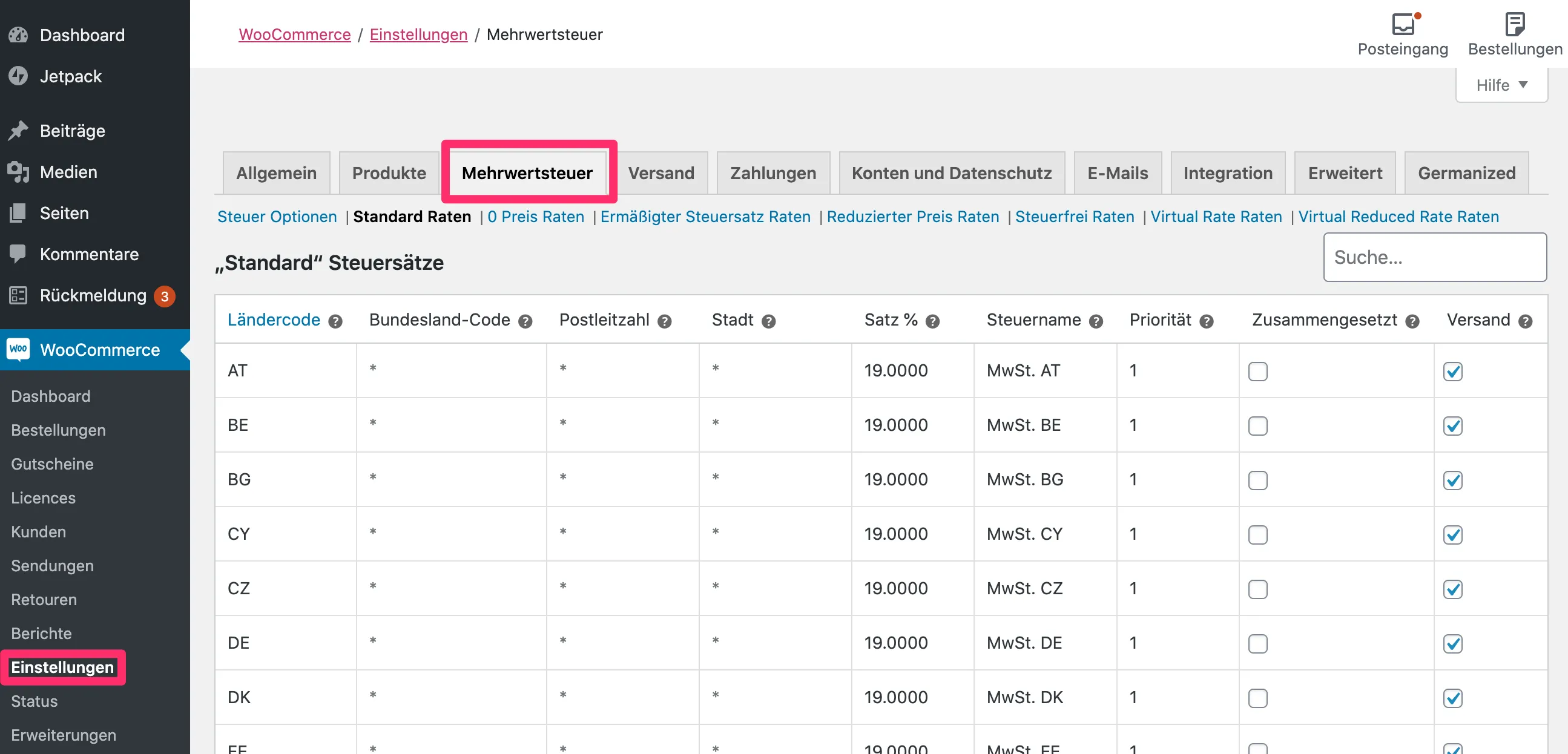
Adjusting tax rates in WooCommerce
To adjust the tax rates, go to the following menu in WordPress: WooCommerce > Settings - there select “VAT” under the tabs at the top.
In this dialog you will now find the tax options and can access the different tax rates using the links below the tabs.
For example, click on “Standard Rates” to adjust the normal VAT rates for your WooCommerce shop.
Import the new VAT rates directly into WooCommerce
We have prepared two CSV files for you to import the new VAT rates, which you can easily import into WooCommerce.
Proceed as follows: WooCommerce > Settings - there select “VAT” under the tabs at the top.
Below the tabs you now select the desired tax rate, “Standard Rates” usually includes the standard tax rate of 19%, which must be reduced to 16%. “Reduced tax rate installments” usually includes the reduced tax rate of 7%, which must be reduced to 5%.
Attention: The names of the tax rates can be freely defined in WooCommerce. Make sure you adapt the correct sentences. These may also have other names than those mentioned above.
When you have selected the correct tax rate and the table is in front of you, do the following:
Select the required tax rate and download the import file:
<iframe class="embed-responsive-item" src="https://www.youtube-nocookie.com/embed/8CDmA6d_cZE" width="560" height="315" allowfullscreen="allowfullscreen">``</iframe>
This is how the import works
1. Save current tax rates Click on “Export CSV file” below the table. Please keep the exported CSV file safe; you can use it at the end of the year to restore the old tax rates.
2. Delete the existing entries Select the first entry from the list (just click on it), it should turn slightly yellow. Now click on the last entry in the list while holding down the “Shift” key. Now all table rows should be highlighted in yellow and therefore selected. Now click on the “Remove selected line(s)” button and then on “Save changes”.
3. Import taxes via CSV file After the old tax rates have been deleted, click on “Import CSV file” below the table on the right. In the “Select a file from your computer:” area, now select the CSV file that contains the 16% or 5% tax rates. Then click on “Upload and import file”, done!
As soon as the old tax rates of 19% or 7% apply again, simply use the file you exported in Step 1 and carry out steps 2 and 3 again.
If you have problems implementing the VAT reduction in your WooCommerce system, we would be happy to support you with the work.