
Bajorat Media
Google Tag Gateway: Set Up First-Party Tracking for GA4 and Google Ads
How Google Tag Gateway routes Google tags through your own domain, consolidates tracking and improves GA4 and Google Ads measurement.

Google Tag Gateway is relevant for businesses that use Google Analytics 4, Google Ads, conversion tracking and Consent Mode, but no longer want to operate them as a loose collection of scripts. Instead of loading Google tags only from Google domains, the tag and measurement requests can be routed through the company’s own domain or infrastructure. This does not make tracking automatically privacy-compliant, but it can improve measurement quality, technical control and long-term maintainability.
For websites with Google Ads campaigns, GA4, Google Tag Manager, several landing pages or a tracking setup that has grown over time, Google Tag Gateway deserves a closer look. It is not a replacement for a measurement strategy or consent architecture. It is a practical layer between traditional client-side tagging and a full server-side tagging setup.
What Google Tag Gateway Does Technically
Google describes the solution as Google tag gateway for advertisers. The core idea is straightforward: a Google tag or a Google Tag Manager container is deployed through your own domain. Measurement events are also sent to your domain first and then forwarded to Google.
In a classic setup, the browser loads scripts and measurement endpoints directly from Google domains. With Google Tag Gateway, a gateway sits between the website and Google:
- A user visits the website.
- The website loads the Google tag or GTM container through a first-party path.
- Measurement events are sent through your domain or your infrastructure.
- The gateway forwards relevant signals to Google.
This creates a first-party context for delivering and forwarding Google tags. Depending on the setup, this can use Cloudflare, Fastly, Akamai, Google Cloud Load Balancer, another CDN integration or server-side infrastructure. Google also documents Google Tag Gateway cookie handling: the gateway uses Google first-party cookies and drops forwarded non-Google first-party cookies instead of processing or storing them.
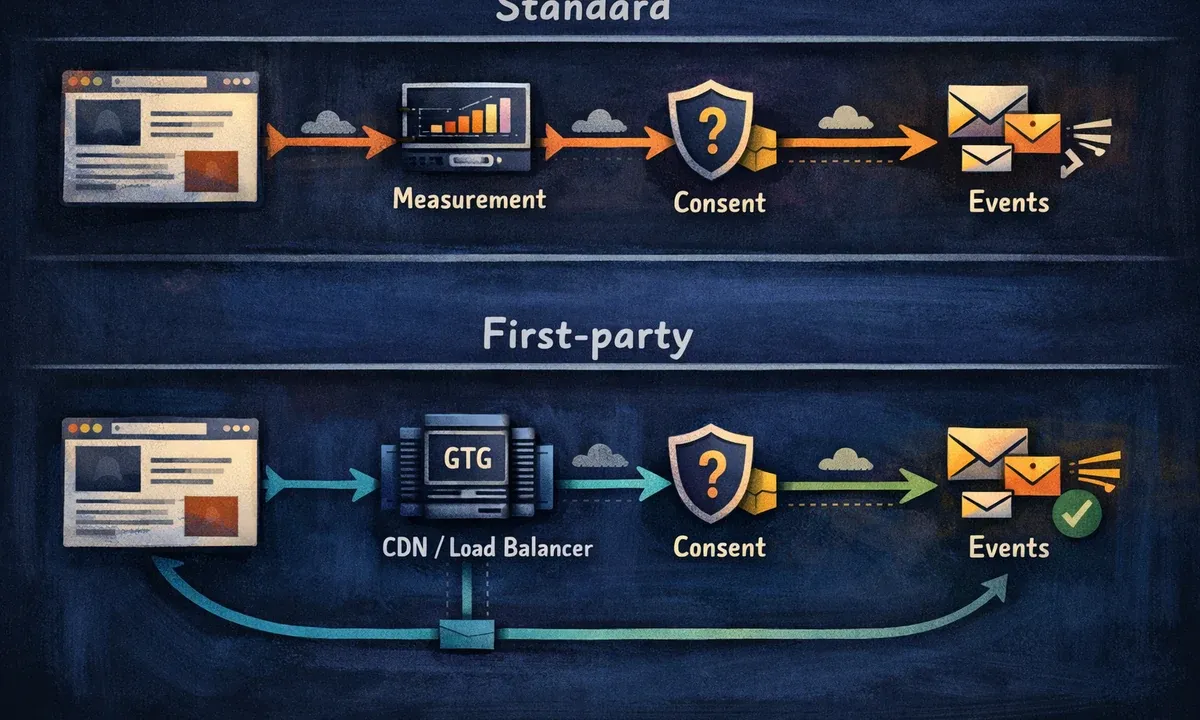
For website owners, the important distinction is this: Google Tag Gateway is not a new analytics platform. It is a delivery and forwarding layer for Google tags. The actual measurement logic still lives in GA4, Google Ads, Google Tag Manager, conversion actions, Consent Mode and the related product accounts.
Why Google Tag Gateway Matters Now
Tracking has changed from “add a script and collect data” into an infrastructure topic. Browsers restrict tracking more aggressively, users make consent decisions, ad blockers intervene, Google Ads depends on reliable conversion signals and GA4 quickly becomes hard to evaluate without a clear event model.
Google Tag Gateway does not solve all of this on its own. It helps at a specific point that many setups neglect: how Google tags are technically loaded and how measurement signals travel from the website to Google.
For businesses, the main benefits are:
- Google tags can be delivered in a first-party context.
- GA4 and Google Ads signals may be captured more robustly.
- The number of separate Google snippets on the website can often be reduced.
- Tag configuration can be managed more centrally.
- Existing CDN or cloud infrastructure can become part of the tracking setup.
- Debugging becomes easier when the measurement path is documented.
Google Tag Gateway is not a way to bypass consent. Consent decisions, Consent Mode, the consent management platform, privacy notices and technical blocking before consent still need to be planned and tested. If the gateway is enabled without a consent architecture, the technical route changes, but the real tracking problem remains.
The article on cookie banners, Consent Mode v2 and GA4 explains that consent layer in more detail. Google Tag Gateway works below or alongside that layer: it affects the path through which Google tags and measurement signals are delivered.
Google Tag, Google Tag Manager and Destinations: Clean Up Before You Enable the Gateway
Before a gateway is configured, the existing Google tag setup should be understood. Many websites have accumulated several variants over the years:
- an old
gtag.jssnippet for Google Analytics - a Google Ads remarketing tag
- Google Ads conversion tags
- a Google Tag Manager container
- a Conversion Linker tag
- additional integrations from shop plugins, consent tools or website builders
- old test or agency tags that nobody can clearly assign anymore
This creates unclear data quality. Some events are measured twice, others are incomplete. Google Ads reports missing tags while GA4 receives data. Consent Mode is active, but individual scripts added directly by a plugin bypass the Tag Manager container. This is exactly where tag consolidation and Google Tag Gateway need to be considered together.
In its documentation on Google tag management, Google describes two important concepts: Google tags can be combined, and destinations can be added to or removed from a Google tag. A destination can be a GA4 property or a Google Ads account. This means one Google tag can send data to several Google products.
For implementation work, the distinction matters:
| Decision | When it makes sense | Risk |
|---|---|---|
| Combine Google tags | Several Google tags should share settings, coverage and users. | Existing differences in configuration can change behavior. |
| Add a destination to a Google tag | An existing implementation should also send data to another Google product. | Wrong destinations can send data to the wrong accounts. |
| Keep tags separate | Different requirements, responsibilities or setups should remain isolated. | More code and more maintenance effort on the website. |
| Orchestrate through GTM | Events, triggers, consent and debugging should run centrally. | The container can become difficult to maintain without governance. |
The best sequence is therefore: inventory first, consolidation second, gateway third. Enabling the gateway before discovering that three different Google tags run in parallel may modernize the signal path, but it does not create a reliable tracking setup.
Google Tag Gateway vs. Server-Side Tagging
Google Tag Gateway and server-side tagging are often discussed together, but they are not the same thing. Both can strengthen first-party measurement, yet they solve different problems.
| Approach | Main purpose | Typical use case |
|---|---|---|
| Classic client-side tagging | Tags run directly in the browser and send data to external endpoints. | Smaller setups with basic GA4 or Ads implementation. |
| Google Tag Gateway | Google tags are delivered and forwarded through your own domain or infrastructure. | Google-focused setups with GA4, Google Ads and GTM. |
| Server-side tagging | A server container processes, filters and distributes measurement data to several destinations. | Complex setups with Google, Meta, CRM, own APIs, data enrichment or stricter governance. |
Google Tag Gateway is usually easier to introduce than a full server-side GTM stack. It focuses on Google tags and on the route those tags take. Server-side tagging is broader: it can receive events, apply rules, remove or enrich parameters, route data to multiple platforms and connect internal systems.
For many small and medium-sized businesses, Google Tag Gateway can be a pragmatic intermediate step. It is less complex than a complete server container, but more structured than several directly embedded Google scripts. Once Meta, LinkedIn, CRM systems, offline conversions, custom data pipelines or extensive validation rules become part of the setup, server-side tagging becomes more relevant.
For a deeper conceptual explanation, the FAQ article what is server-side tagging? is a useful next step. The online marketing service page also shows why tracking, campaign measurement, reporting and technical implementation should be planned together.
Requirements for a Useful Setup
A good Google Tag Gateway project does not begin in the Google interface. It begins with preparation. Without it, setup becomes trial and error.
Before implementation, check:
- Which Google products are in use? GA4, Google Ads, Campaign Manager 360, Merchant Center, Floodlight?
- Where are tags currently implemented? In source code, via GTM, WordPress plugins, shop modules or a CMP?
- Are there several Google tags with similar functions?
- Which domains and subdomains should be measured?
- Is cross-domain measurement involved, for example between a website, shop, booking flow or payment provider?
- Is Consent Mode v2 fully implemented?
- Which CDN, cloud or hosting infrastructure is available?
- Who has admin access to Google tag settings, GTM, GA4, Google Ads, CDN and DNS?
- Is there a staging or test environment for technical verification?
- Which conversions are commercially relevant and must remain stable after the change?
Point 8 is often underestimated. Google Tag Gateway connects marketing, web development, privacy, hosting and cloud administration. Those teams do not need to work on the setup every day, but they need to coordinate for the change. Missing access to one system can block the whole project.
Tutorial: How to Set Up Google Tag Gateway in a Controlled Way
The exact click path depends on whether the setup uses Google tag settings, Google Tag Manager, Cloudflare, Google Cloud Load Balancer, another CDN integration or a manual route. The following process is therefore a technical implementation model rather than a fixed click-by-click guide for every account.
Step 1: Inventory Existing Google Tags
Start in Google Tag Manager, GA4 and Google Ads. Document:
- GTM container ID, for example
GTM-XXXXXXX - GA4 measurement ID, for example
G-XXXXXXXXXX - Google Ads tag ID, for example
AW-XXXXXXXXX - conversion actions and their triggers
- existing Google tags in the Google tags area
- snippets embedded directly in source code or plugins
- Consent Mode signals such as
analytics_storage,ad_storage,ad_user_dataandad_personalization
The browser should also be used to verify which Google requests actually occur. Browser DevTools, Tag Assistant and a fresh browser profile are enough for the first pass. Compare different consent states: first visit without a choice, rejection, analytics consent, marketing consent and withdrawal.
Step 2: Decide Which Google Tag Is the Leading One
If several Google tags exist, decide which tag should play the central role in the future. Sometimes this is the existing GA4 tag, sometimes the Google Ads tag, and often the practical control layer is Google Tag Manager.
This decision should not be based only on the oldest or most familiar tag. More relevant questions are:
- Which implementation is present on all important page types?
- Which tag settings are currently correct?
- Which destinations need to receive data?
- Who has long-term admin access?
- Which tags are technical leftovers?
- Which tags are relevant for conversion tracking, remarketing or audience building?
If Google tags are combined or destinations are moved, test for collisions with old on-page configuration. Google itself warns that changes to tag management can affect what destinations receive. A before-and-after test is therefore not optional.
Step 3: Align Consent Mode and the CMP
Google Tag Gateway changes delivery and forwarding. It does not change the consent logic. If a user rejects marketing, the gateway must not cause Google Ads signals to run without control. If Advanced Consent Mode is used, that decision should be assessed and documented technically and legally.
A reliable setup connects:
- a Consent Management Platform or another consent system
- Consent Mode v2 with correct default states
- GTM triggers and consent requirements
- a privacy policy that reflects real services and purposes
- tests for consent, rejection, changes and withdrawal
On WordPress websites, also check whether plugins load their own tracking scripts. The WordPress GDPR and data protection service is relevant here because tracking often lives not only inside Tag Manager, but also in themes, forms, shop plugins, video embeds or third-party services.
Step 4: Choose the Gateway Path and Infrastructure
There are several possible routes depending on the website stack:
| Infrastructure | Typical route | Suitable for |
|---|---|---|
| Cloudflare | Setup through Google tag or GTM with Cloudflare login. | Websites already using Cloudflare as CDN. |
| Google Cloud Load Balancer | Setup through a Google Cloud project and load balancer integration. | Companies with existing Google Cloud infrastructure. |
| Fastly or Akamai | CDN integration through the supported platform. | Larger setups with enterprise CDN. |
| Own CDN or server configuration | Manual or self-service configuration. | Technical teams with routing and infrastructure control. |
| WordPress Site Kit | Activation through the Site Kit integration if the requirements are met. | WordPress sites that already use Site Kit and need a lean setup. |
The measurement path should not collide with existing website routes. If a path such as /metrics, /measure or another gateway path is used, it must not already serve a normal page, a download, an API or another service.
Step 5: Enable Google Tag Gateway
For a setup through Google Tag Manager with a supported infrastructure provider, the process generally looks like this:
- Open Google Tag Manager.
- Go to the container administration area.
- Select Google Tag Gateway.
- Review or adjust the measurement path.
- Connect the infrastructure provider or Google Cloud project.
- Select the domain.
- Complete the setup.
- Check the status, for example “First-party”, “Active” or the equivalent status shown in the interface.
When setup starts from Google Ads or GA4, the route usually runs through the Google tag settings. The same principles apply: verify the domain, connect the infrastructure and review the final configuration before relying on it.
Important: after activation, do not assume that everything works. Consent setups, tag combinations, cross-domain measurement and plugin integrations can all change behavior.
Step 6: Test With Tag Assistant, DevTools and GA4
After activation, testing should not depend on a single tool. A solid review combines several perspectives:
- Tag Assistant shows whether hits travel through the expected measurement path.
- Browser DevTools show which scripts and requests are actually loaded.
- GA4 DebugView shows whether events arrive.
- Google Ads diagnostics show whether conversion actions receive signals.
- The CMP or consent tool shows which consent state is active.
- Browser cookie inspection shows which cookies are set.

At minimum, document one test run for each consent state:
| Scenario | Expected result |
|---|---|
| First visit without a decision | Default consent applies and unwanted tags do not fire. |
| Rejection | Non-essential analytics and ads signals remain blocked or follow the reviewed Consent Mode behavior. |
| Analytics consent | GA4 receives allowed events while Ads remains separated depending on marketing consent. |
| Marketing consent | Google Ads conversion and remarketing signals can work correctly. |
| Withdrawal | The change is passed to Consent Mode and the affected tags. |
| Conversion test | The conversion is measured exactly once and appears in the correct account. |
This testing should be repeated in a fresh browser profile or incognito window. Internal visits, test conversions and staging URLs should be handled carefully so they do not distort production reporting.
Typical Google Tag Gateway Mistakes
Many problems do not come from the gateway itself. They come from an existing tracking setup that was already unclear.
Common mistakes include:
- Google Tag Gateway is enabled while several old Google tags still run in parallel.
- GA4 and Google Ads receive data from different, uncoordinated tag paths.
- Consent Mode is incomplete or fires too late.
- A CMP blocks the Tag Manager container while a plugin still outputs its own Google scripts.
- The measurement path collides with an existing route or is blocked by security rules.
- Staging and live environments behave differently.
- Internal visits and test conversions are not excluded.
- Duplicate events are not checked after combining Google tags.
These issues should be found before campaigns depend on the data. This is especially important when Google Ads uses automated bidding. Wrong or duplicated conversions can train bidding strategies in the wrong direction.
When Google Tag Gateway Is Not Enough
Google Tag Gateway is strongest when the tracking architecture is centered on Google products. It is not the right answer for every measurement architecture.
A full server-side GTM approach or custom tracking architecture becomes more useful when:
- data should be validated, filtered or enriched before forwarding
- several non-Google platforms are involved, such as Meta, LinkedIn, CRM or affiliate systems
- offline conversions, lead qualification or CRM stages need to be imported
- custom APIs and data pipelines are involved
- one central event schema is required across several systems
- stricter technical governance is needed
For many business websites, the realistic architecture is staged: stabilize consent and Tag Manager, consolidate Google tags, enable Google Tag Gateway, test the important conversions and only move to a broader server-side setup when the use case requires it.
Implementation Checklist
Before going live, work through this checklist:
- All active Google tags and GTM containers are documented.
- GA4, Google Ads and conversion destinations are assigned to the correct business goals.
- Duplicate or outdated snippets have been removed or deliberately separated.
- Google tag destinations have been reviewed before tags are combined or moved.
- Consent Mode v2 is aligned with the CMP.
- The gateway path is technically available and does not collide with existing routes.
- CDN, cloud, DNS and GTM access are confirmed.
- The setup has been reviewed in Tag Assistant.
- DevTools show requests through the expected first-party path.
- GA4 DebugView receives the correct events.
- Google Ads conversions do not fire twice.
- Rejection, consent, partial consent and withdrawal have been tested.
- Changes are documented so future teams can understand the setup.
If these points are covered, Google Tag Gateway is not merely “enabled”. It is embedded in a tracking setup that can be reviewed, maintained and improved.
Conclusion: Google Tag Gateway Makes Tracking Easier to Maintain
Google Tag Gateway is a useful building block for businesses that want to operate GA4, Google Ads, Google Tag Manager and Consent Mode in a more professional way. It does not automatically fix every tracking issue, but it creates a better technical foundation: fewer scattered Google scripts, clearer first-party delivery, better integration with existing infrastructure and a more traceable measurement chain.
The greatest value appears when Google Tag Gateway is not switched on in isolation. Tag inventory, Google tag consolidation, consent review, gateway activation and debugging have to work together.
If you want to set up Google Tag Gateway, GA4, Google Ads conversion tracking or Consent Mode in a technically reliable way, Bajorat Media can support the analysis, implementation and ongoing optimization. For concrete questions about your tracking setup, you can contact us directly.