Bajorat Media
Integrate Divi GDPR & Google Fonts locally | in 10 seconds
How to make Divi GDPR secure and integrate Google Fonts locally. With our plugin, integration takes less than 10 seconds.
The Divi Theme from ElegantThemes is by far one of the best-selling and most used themes for WordPress. Unfortunately, some functions of the popular theme are incompatible with the GDPR. This primarily includes the integration of Google Fonts, which are integrated into Divi via URLs from Google. However, with this integration, the dynamic user IP address is transmitted to Google. 11 Note: Are you not a Divi user? Here you will find all information regarding WordPress themes & Google Fonts in general. There is also a plugin solution for the automatic integration of Google Fonts for WordPress websites without Divi. Just follow this link. In this article we would like to explain to you why using Google Fonts via the Google CDN is problematic, how you can tell whether your website uses Google Fonts and of course how you can integrate Google Fonts locally. If you want to go straight to a solution, check out the plugin “Divi GDPR & Google Fonts” on.
The judgment of the Munich Regional Court
However, with the judgment of January 19, 2022, the Munich Regional Court decidedthat passing on the dynamic IP address to Google when using Google Fonts without the explicit consent of the person concerned justifies a claim for damages. A legitimate interest was not sufficient here. The website visitor was awarded €100 plus interest as compensation. Furthermore, the website operator was sentenced to cease and desist. A repeat offense could result in a fine of up to €250,000.
How do I recognize Google Fonts in my Divi / WordPress website?
Divi integrates the Google Fonts via Google’s content delivery network (CDN for short). You can easily identify this integration in your own website by searching for the URL “fonts.googleapis.com” or “fonts.gstatic.com” via the browser’s developer console. The developer console can be opened in most web browsers using the key combination “CTRL + ALT + I”, where Google Fonts can then be easily identified via the network tab, here is an example: 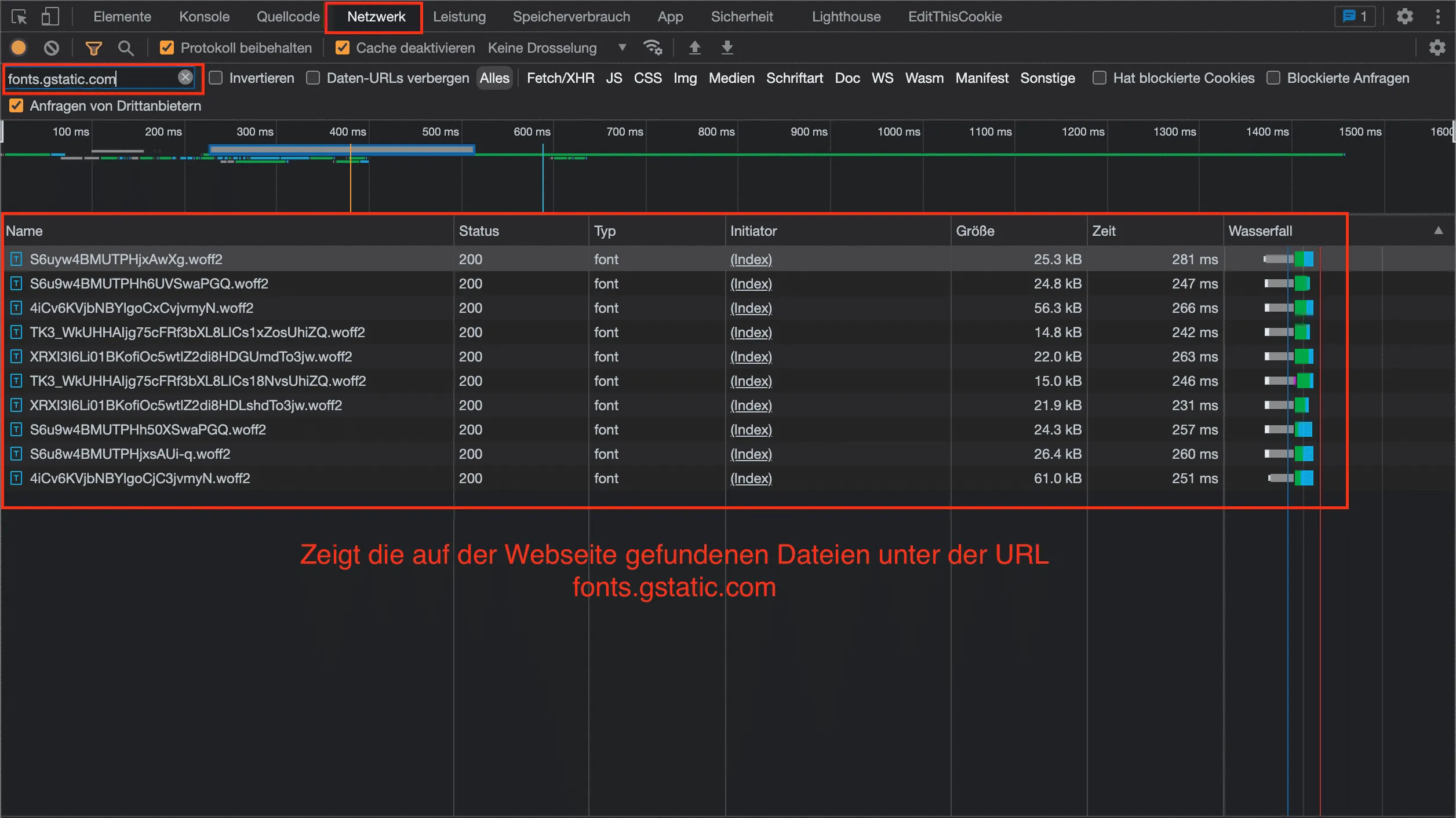
How can Google Fonts be integrated into Divi in a GDPR-compliant manner?
There are basically two ways to integrate Google Fonts into Divi in a GDPR-compliant manner, provided you don’t want to do without them completely. As a rule, doing without is not an option because, in addition to high compatibility, Google Fons offers a good look for your own website. The two options are as follows:
Use of our plugin “Divi GDPR & Google Fonts”
The plugin is available from €29 and just needs to be installed and activated. The plugin then automatically takes care of the local integration of Google Fonts into Divi. No major manual steps or configuration is necessary. The integration effort is maybe 10 seconds to upload and click “Activate”. The plugin also optimizes a few other points that bring Divi closer to a GDPR-compliant theme. More details can be found on the plugin page: Divi GDPR & Google Fonts. https://youtu.be/yd-pqkII4PE
Manual integration via a child theme or plugin
Manual integration via a child theme or plugin requires a basic understanding of web and WordPress development and associated technical understanding. Furthermore, this solution is not a permanent one. If new/different fonts are selected via the Divi Builder, this step must always be repeated and carried out again. The integration effort varies extremely depending on the technical skills of the respective user. In the following we would like to introduce you to both options. If you have not had any technical contact with FTP programs, PHP, CSS, etc., we would like to recommend our plugin to you; it will save you a lot of work and possibly frustration when trying it out.
The 10 second integration via the “Divi GDPR & Google Fonts” plugin
14 You can buy and download the plugin directly from our plugin store. Immediately after ordering, you will receive the plugin file, which you can install in WordPress via “Plugins > Install” and the “Upload plugin” button. https://youtu.be/yd-pqkII4PE 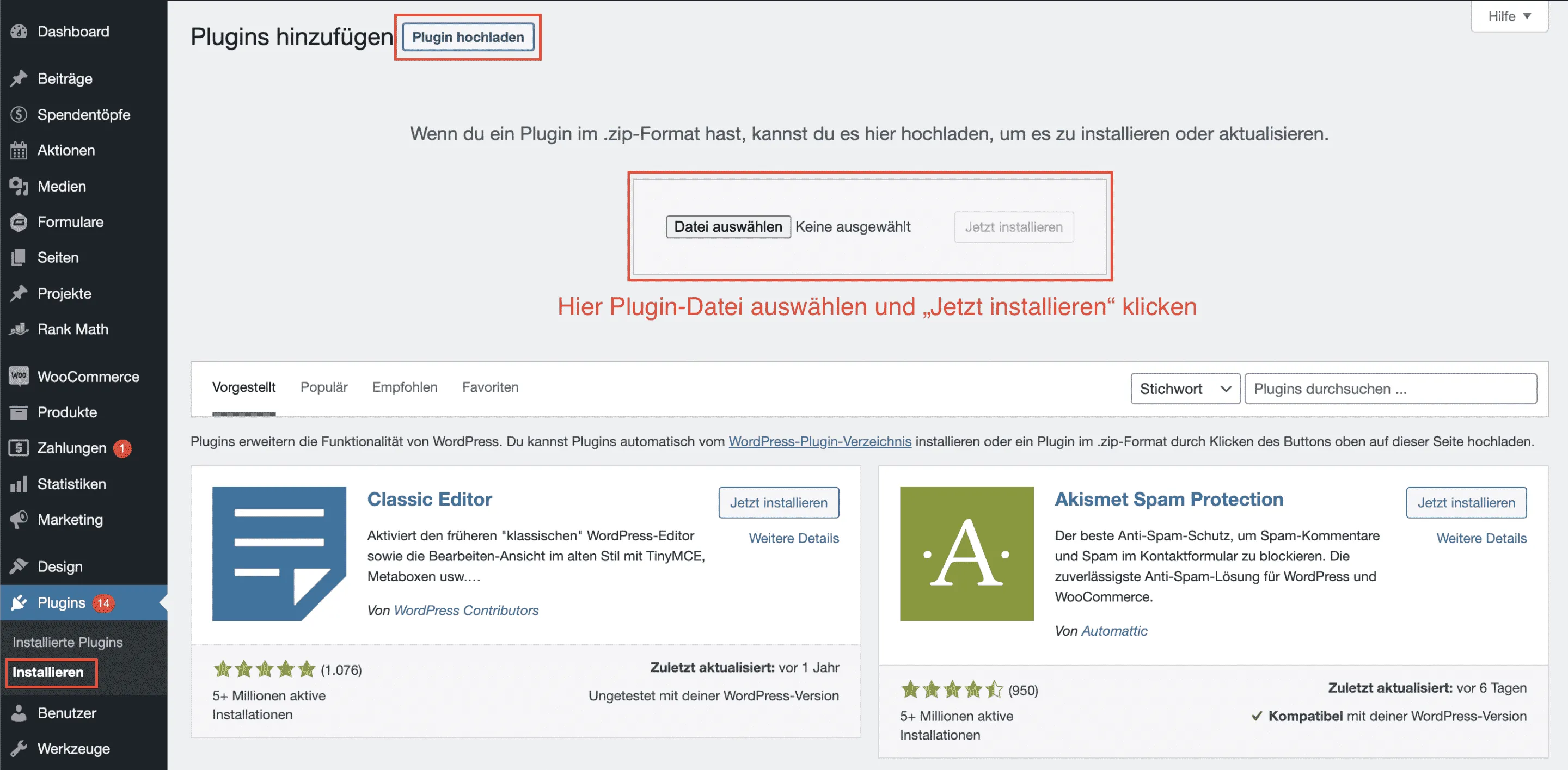
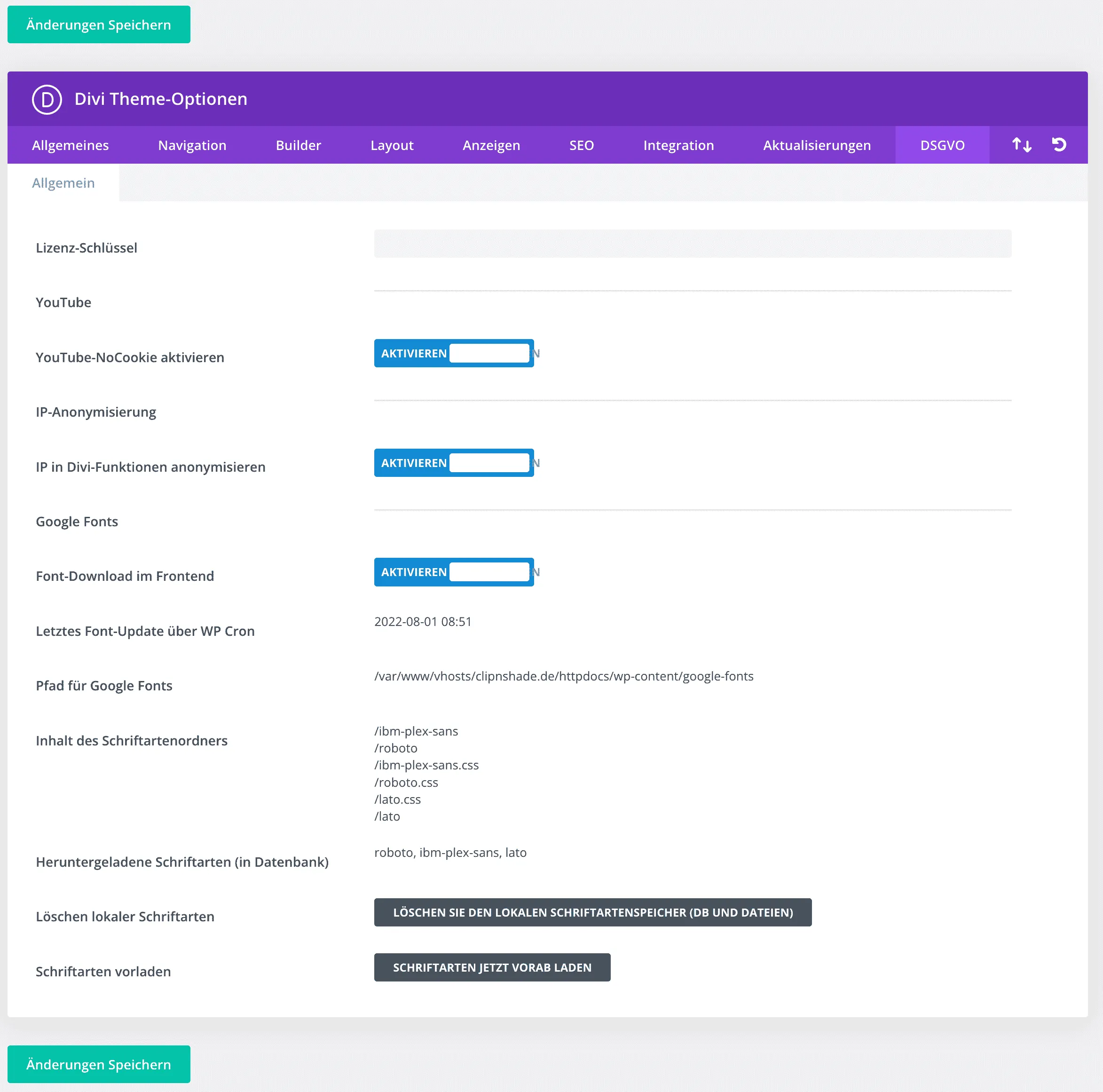
Manual integration via your own plugin or child theme
If your Divi website already has a child theme, insert the CSS codes and font files mentioned below into your child theme, then you do not need a separate plugin.
Note fonts and styles
The first thing you need to do is make a note of all the Google Fonts and font styles you use so that you know which fonts you need to download.
Deactivate Google Fonts in Divi
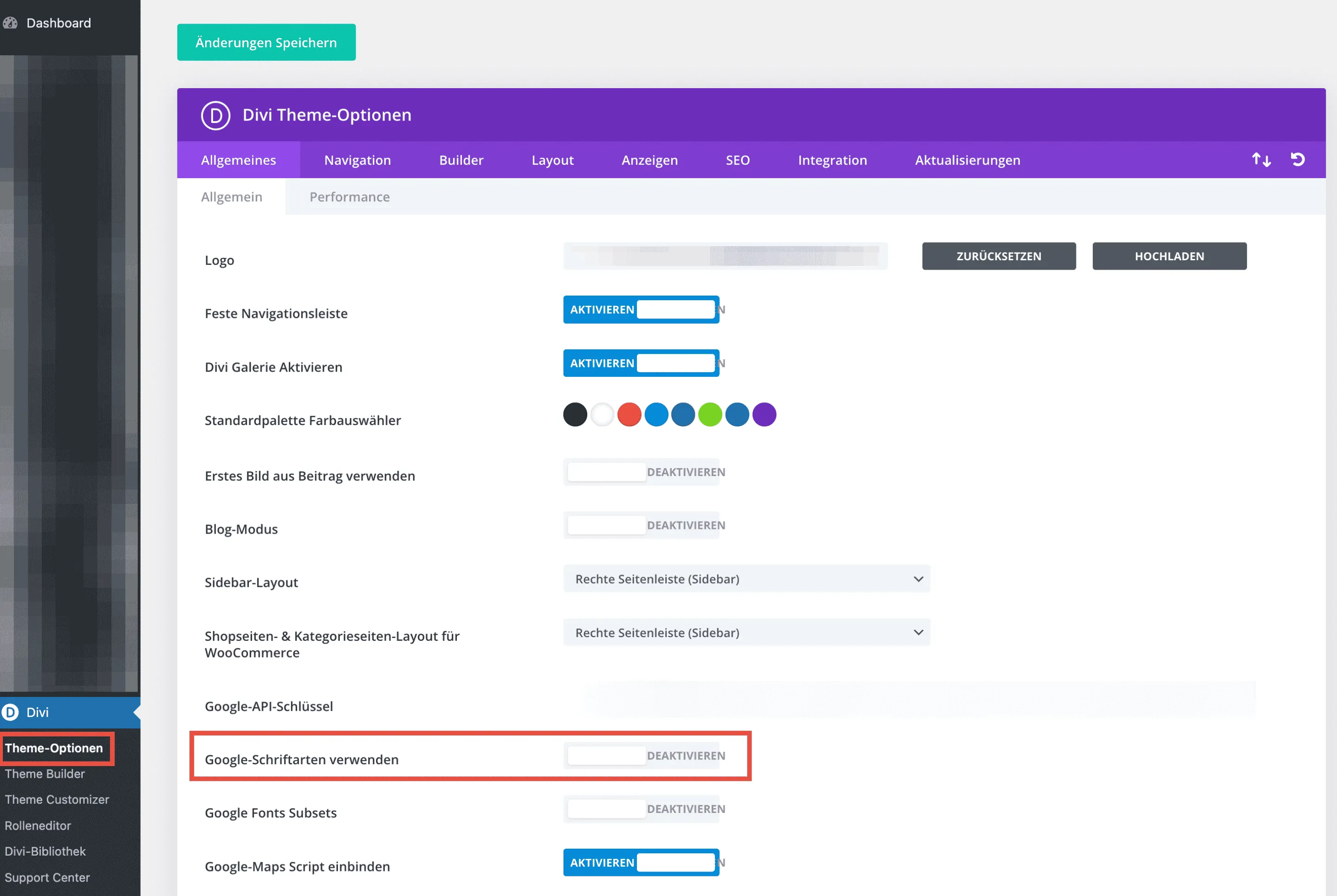
Open Divi’s Theme Options and turn off the “Use Google Fonts” option.
Creating the plugin (skip if child theme exists)
Open the /wp-content/plugins/ folder with an FTP program. Now create a new folder called “divi-google-fonts”. Now create another folder in the newly created folder, which will be named “fonts”. In addition, two files are created, one “divi-google-fonts.php” and “fonts.css”. The structure should then look like this:
- /divi-google-fonts
- /fonts/
- /fonts.css
- /divi-google-fonts.php
Open the file “divi-google-fonts.php” and paste the following code there: You can then activate the plugin in your WordPress system under “Plugins > Installed Plugins”. Look for the entry “Local Google Fonts for Divi by Bajorat Media.”
Download Google Fonts
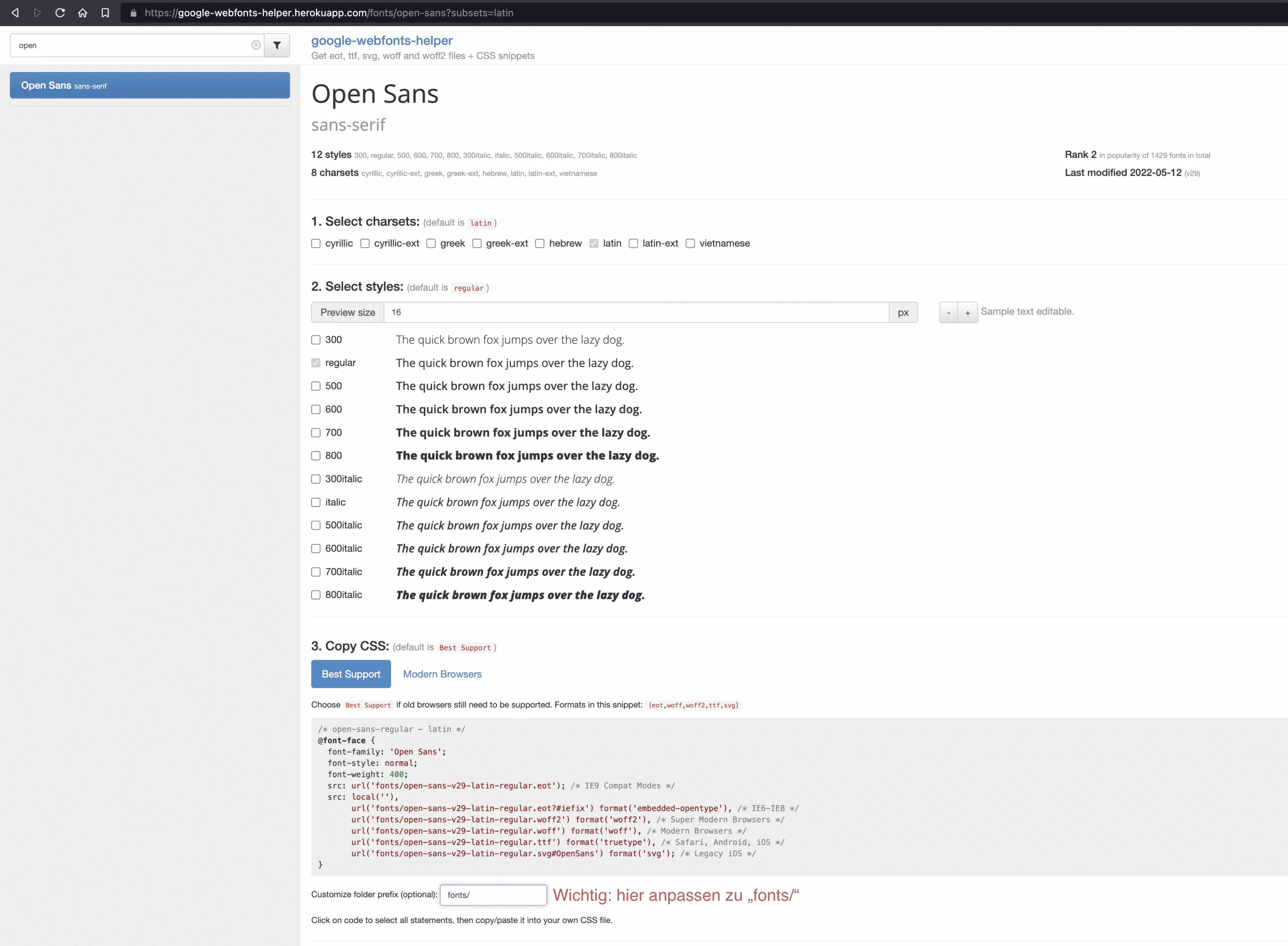
Use that Google Webfonts Helperto load the necessary font files and generate the CSS. You now need the list that you created at the beginning. Find each font used individually from the list, click on the required “Charsets” and select the desired and used styles. Now look for the input field for the folder name below the CSS display, this is labeled “Customize folder prefix (optional):”. Enter “fonts/” here to match the structure of the small plugin.